XserverのメンテナンスメールをGoogleカレンダーに登録するGAS
/ 5 min read
Table of Contents
はじめに
Xserver を契約していると以下のような長い件名のメールが届きます。
収容ホスト『host02-1 ~ host02-18、host02-10001、host02-10002』8/26 AM7:00 頃~ PM0:00 頃にかけての 10 分~ 20 分程度のサーバー停止を伴う緊急システムメンテナンスについて
非常に見づらいのですが、大事な情報なので Google カレンダーに入れたい。でも手打ちは面倒すぎる。
ということで、GAS と ChatGPT API の勉強も兼ねてスクリプトを作ってみました。 このスクリプト自体も
ほぼ ChatGPT4 とのペアプロで作ったのですが、なかなか正確でかなり助かりました。ちなみに一回ドラフト
してもらったスクリプトをさらに最適化してくれと頼んで作っています。
概要
ざっくりした説明ですが、以下の 3 段階で動いています。
json へのパースは ChatGPT に任せているので実装は楽でしたが、反面安定性には若干不安が残っています。
- Gmail に届いた Xserver からのメンテナンスメールから件名を取得
- 件名から対象ホストとメンテナンス時間を ChatGPT の API で json にパース
- Google カレンダーに突っ込む
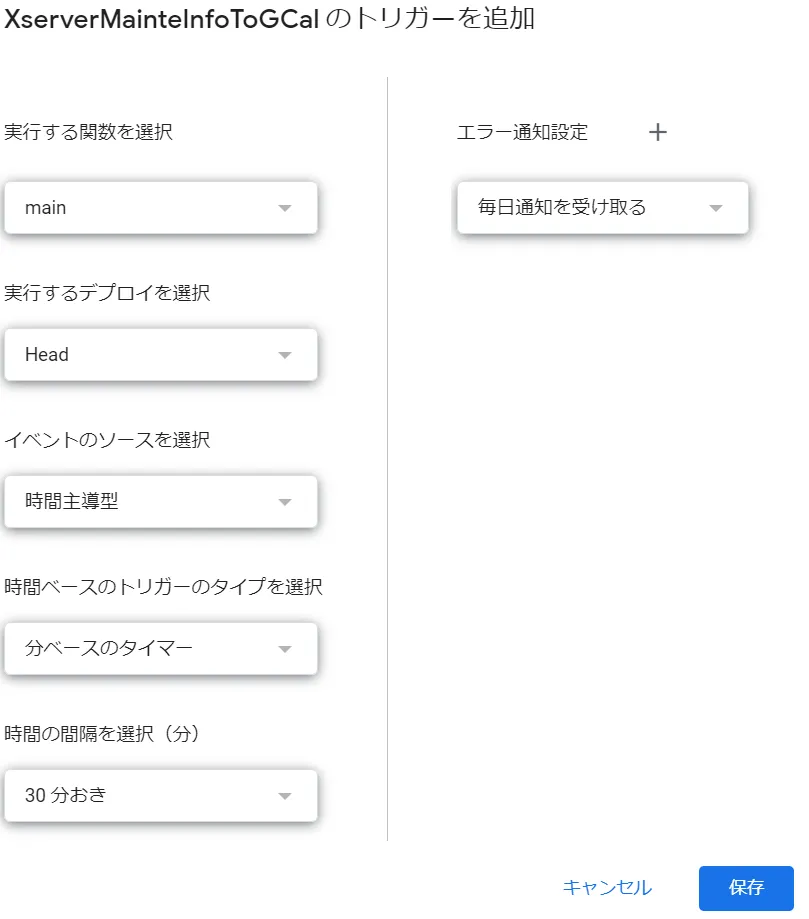
後は main()を 定期的に動かすトリガーを設定して放置
ちなみに冒頭紹介した例文は次のようにパースしてくれます。~で省略されているホストも律儀に列挙してくれる
ところがにくいやつです。
{ "hosts": [ "host02-1", "host02-2", "host02-3", "host02-4", "host02-5", "host02-6", "host02-7", "host02-8", "host02-9", "host02-10", "host02-11", "host02-12", "host02-13", "host02-14", "host02-15", "host02-16", "host02-17", "host02-18", "host02-10001", "host02-10002" ], "target_period": { "start_date": "2023/08/26 07:00", "end_date": "2023/08/26 12:00" }}スクリプト全体像
function getEmailSubjects() {  // Gmailの検索クエリを使用して条件に合致するメールを取得  const threads = GmailApp.search(    "from:メンテナンス support@xserver.ne.jp is:unread",  );
  // 件名を取得  const emailSubjects = [];
  threads.forEach((thread) => {    thread.getMessages().forEach((message) => {      const subject = message.getSubject();
      // 【完了】以外のメール件名を格納して既読にする      if (!subject.match("【完了】")) {        emailSubjects.push(subject);        message.markRead();      }    });  });
  // 件名のリストを返す  // Logger.log(emailSubjects);  return emailSubjects;}
function createCalEvent(title, startTime, endTime, description) {  // カレンダーに予定を登録  const calendar = CalendarApp.getDefaultCalendar();
  calendar.createEvent(    title, // タイトル    new Date(startTime), // 開始時間    new Date(endTime), // 終了時間    { description }, // 備考  );}
function getGptResponse(messages, temperature, apiKey, model) {  // ChatGPTに質問して回答を得る  // 参考: https://qiita.com/investerinarian/items/99ab12fdd74fb31bb39b  const options = {    method: "POST",    headers: {      "Content-Type": "application/json",      Authorization: `Bearer ${apiKey}`,    },    payload: JSON.stringify({      model,      messages,      temperature,    }),    muteHttpExceptions: true,  };  try {    const response = UrlFetchApp.fetch(      "https://api.openai.com/v1/chat/completions",      options,    );    return JSON.parse(response.getContentText());  } catch (e) {    // 例外エラー処理    Logger.log("getGptResponse Error: " + e);    return null;  }}
function parseSubject(subject) {  // メールの件名をパースする  // プロジェクトの設定 > スクリプトプロパティでOpenAIのAPIKEYを設定  const apiKey = PropertiesService.getScriptProperties().getProperty("APIKEY");  const model = "gpt-3.5-turbo"; // gpt-4 or gpt-3.5-turbo
  // 質問パート  const thisYear = new Date().getFullYear();  const messages = [    {      role: "user",      content: `      対象文章から以下の要件に従って収容ホストと対象期間をパースしたjsonのみを返してください。      - 回答は以下のjsonフォーマットに従ってください。      {        "hosts": ["input"],        "target_period": {          "start_date": "yyyy/mm/dd hh:mm",          "end_date": "yyyy/mm/dd hh:mm"        }      }      - 対象文章のAM0:00は0:00、PM0:00は12:00に変換してください。      - start_dateとend_dateの年部分が不明な場合は、${thisYear}を入力してください。      - 対象文章: ${subject}`,    },  ];
  const temperature = 0.5;  const response = getGptResponse(messages, temperature, apiKey, model);
  const parsedContent = response.choices[0].message.content;  Logger.log(parsedContent);  return parsedContent;}
function main() {  // Gmailから件名を取得  const emailSubjects = getEmailSubjects();
  // パースしてGoogleカレンダーに登録  emailSubjects.forEach((subject) => {    const response = JSON.parse(parseSubject(subject));
    createCalEvent(      "Xserverメンテナンス",      response.target_period.start_date,      response.target_period.end_date,      subject,      // 備考欄に件名ではなくパースしたホストを入れたい場合はこっち      // JSON.stringify(response.hosts)    );  });
  Logger.log(emailSubjects.length + "件のメールを処理しました。");}
使い方
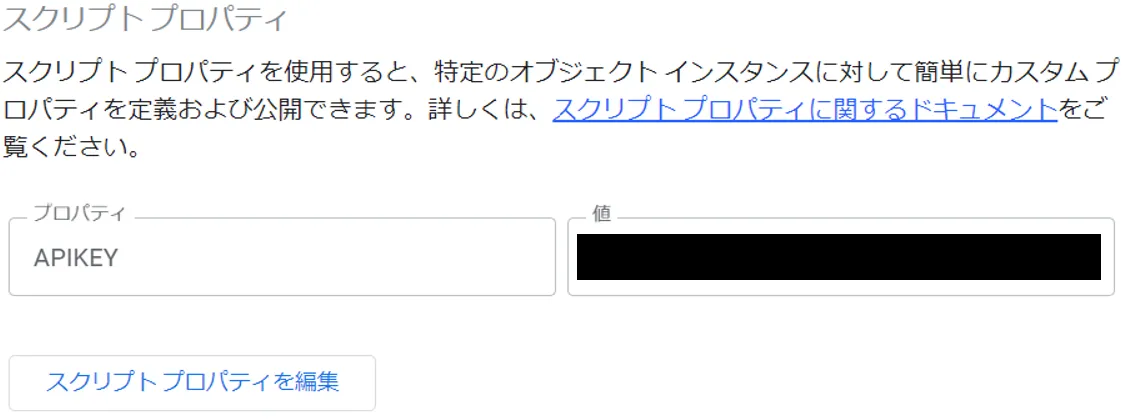
- GAS の左カラムにあるプロジェクトの設定 > スクリプトプロパティで OpenAI の APIKEY を設定
- エディタにスクリプトをコピペする
- GAS の左カラムにあるトリガー > トリガーを追加 から main()にトリガーを設定する